Getting Started
Basic Usage
The main interface is the show() function that takes a function and its arguments:
[1]:
import jax.numpy as jnp

from visu_hlo import show


def simple_function(x):
    return 10 * x + 2 + 3


show(simple_function, jnp.array([1.0, 2.0, 3.0]));
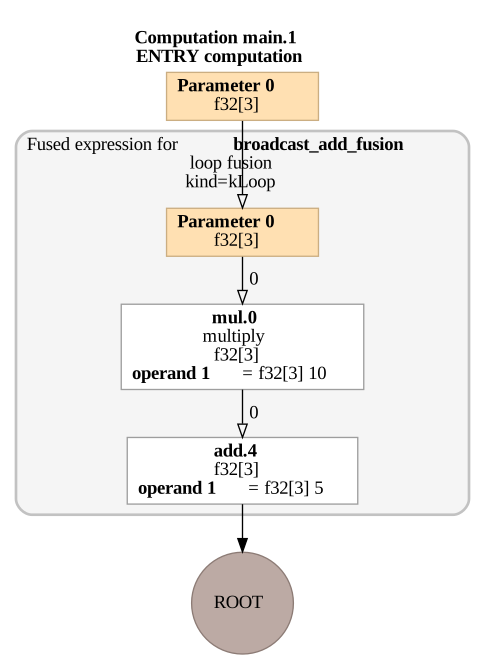
This will:
JIT-compile the function
Generate a DOT graph representation from the optimized HLO
Convert it to SVG format
Display it
Optimized vs Non-Optimized HLO
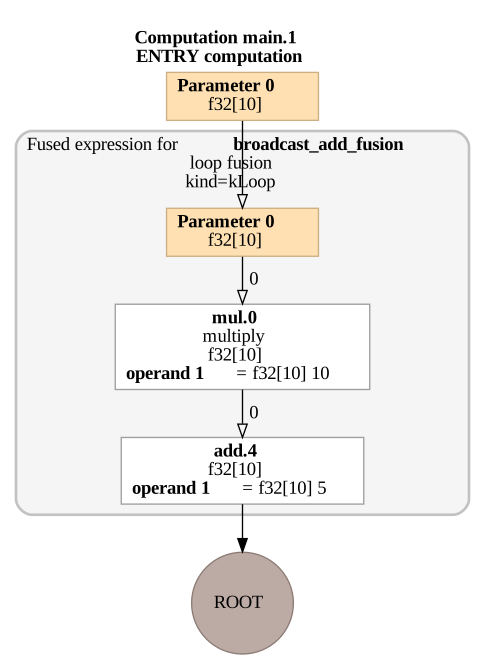
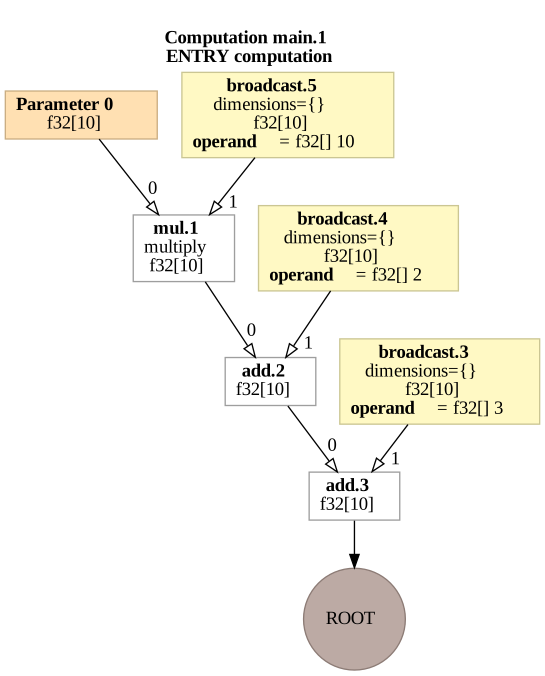
By default, show() displays the optimized HLO after XLA compilation (jit=True). You can also view the non-optimized HLO by setting jit=False:
Optimized HLO (default)
The optimized version shows the computation graph after XLA optimizations:
[2]:
show(simple_function, jnp.ones(10)) # jit=True is the default
Non-Optimized HLO
The non-optimized version shows the Jaxpr computation graph converted to HLO, before XLA optimizations:
[3]:
show(simple_function, jnp.ones(10), jit=False)
Key Differences
When comparing the two visualizations:
Optimization: The optimized version shows fused operations
Constant Folding: Constants like
2 + 3 = 5are pre-computed (folded)Memory Layout: Different memory access patterns may be visible
Operation Count: Fewer nodes in the optimized version
Function Arguments
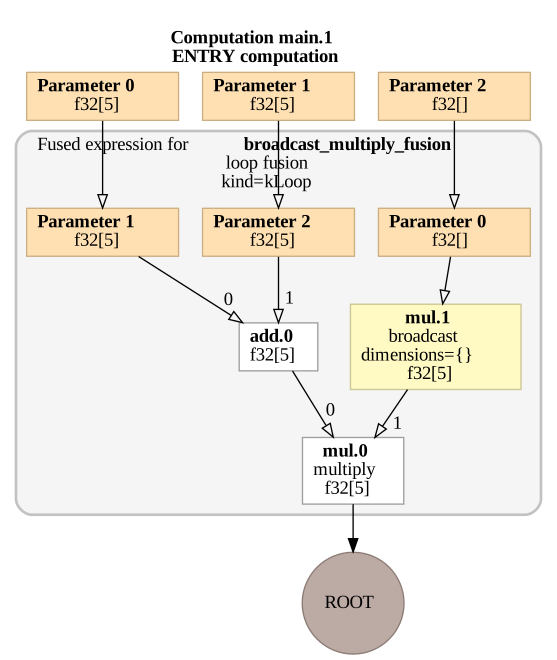
You can pass multiple arguments and keyword arguments:
[4]:
def multi_arg_func(x, y, scale=1.0):
    return (x + y) * scale


show(multi_arg_func, jnp.ones(5), jnp.zeros(5), scale=2.0)
Saving to Files
You can save the HLO graph to SVG or DOT files using write_svg() and write_dot():
from visu_hlo import write_svg, write_dot

# Save as SVG
write_svg('graph.svg', simple_function, jnp.ones(10))

# Save as DOT (Graphviz format)
write_dot('graph.dot', simple_function, jnp.ones(10))

# Save non-optimized HLO
write_svg('graph_unoptimized.svg', simple_function, jnp.ones(10), jit=False)
Understanding the Output
The generated SVG shows:
Nodes: Operations (add, multiply, etc.)
Edges: Data flow between operations
Colors: Different operation types
Labels: Operation names and shapes
Each node contains:
Operation name (e.g.,
add.1,mul.2)Input/output shapes
Source location in your code (when available)